 Allomos

Tatakikun
Tatakikun reads what you type in English letters three ways at once — as an English word, as Chinese pinyin and as Japanese romaji — and shows English, Chinese, hiragana, katakana and kanji candidates side by side in one horizontal bar. What you typed is always one of the candidates.

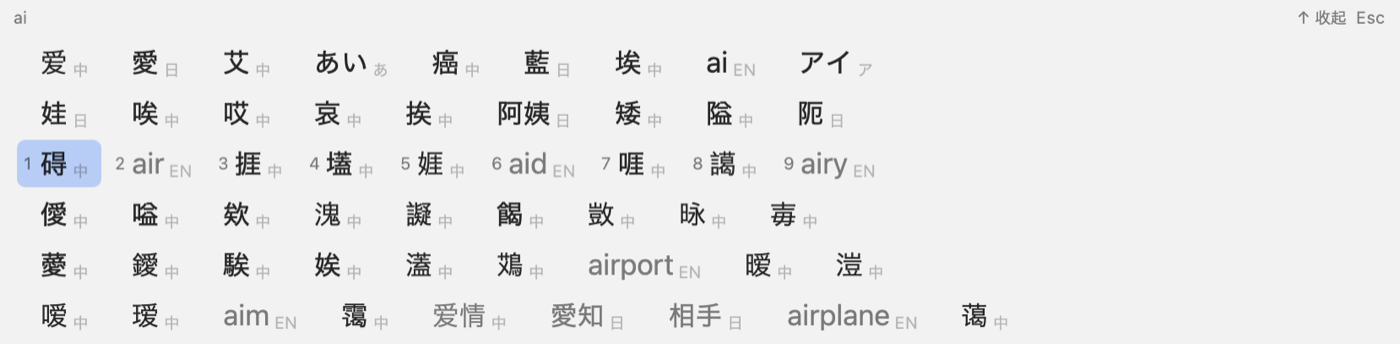
Three languages, one bar
Type ai and get 爱, 愛, あい, アイ and ai together. Each language that matches keeps its best candidate on the bar.
Expand and scroll
Press ↓ or Tab and the bar opens into rows you can scroll, including partial matches: zhongg → 中国, compu → computer.
It learns
Candidates you pick move up next time. What it learns stays on your Mac, in one file you can delete.
Punctuation that fits
After Chinese or Japanese you get full-width punctuation; after English, half-width.
Short cuts
Type only the consonants: nh → 你好, wtx → わたし.
Language packs
Choose Chinese, Japanese and English packs when you install, built from open data (pinyin-data, Mozc, SCOWL).
Install
Open the installer, tick the language packs you want, then add it once: System Settings → Keyboard → Text Input → Input Sources → Edit… → + → Chinese, Simplified → Tatakikun. The installer is not signed by an Apple developer ID: the first time, open System Settings → Privacy & Security and click Open Anyway.
Read how it was built
An English–Chinese–Japanese input method in twenty-nine minutes (in Chinese) — The second experiment: one paragraph, and Claude used Allomos's task tracking to build a macOS input method that shows English, Chinese and Japanese candidates side by side. I walked the dog and did the dishes; three versions were done when I came back.